Features Overview
GenieBuilder is a standalone desktop application that brings together AI-assisted development tools in a unified workspace. It combines multi-tab chat, a built-in code editor, task management, and workflow automation powered by the Model Context Protocol (MCP).
Core Philosophy
Unlike IDE plugins or web-based tools, GenieBuilder:
- Owns the full workspace context — files, git state, and task management in one runtime
- Supports multiple AI providers — switch between cloud and local models without leaving the app
- Embraces MCP for tool integration — extensible tool ecosystem through standardized protocol
- Prioritizes local-first workflows — work offline with local models, keep data on your machine
Feature Matrix
| Feature | Description | Documentation |
|---|---|---|
| Multi-tab Chat | Concurrent conversations with per-tab provider overrides | Chat Workspace |
| Built-in Editor | Full-featured code editor with multi-language support | Built-in Editor |
| Task Management | Backlog integration for task workflows | Tasks & Kanban |
| MCP Integration | Model Context Protocol for tool orchestration | MCP Integration |
| Workflow Engine | Visual workflow designer with execution | Workflow Examples |
| CLI Runners | Integration with CLI-based AI agents | CLI Runners |
| Onboarding | Guided first-time setup wizard | Onboarding |
| Settings & Profiles | Persistent preferences and provider configuration | Settings |
Workspace Layout
GenieBuilder uses a 3-column resizable layout:
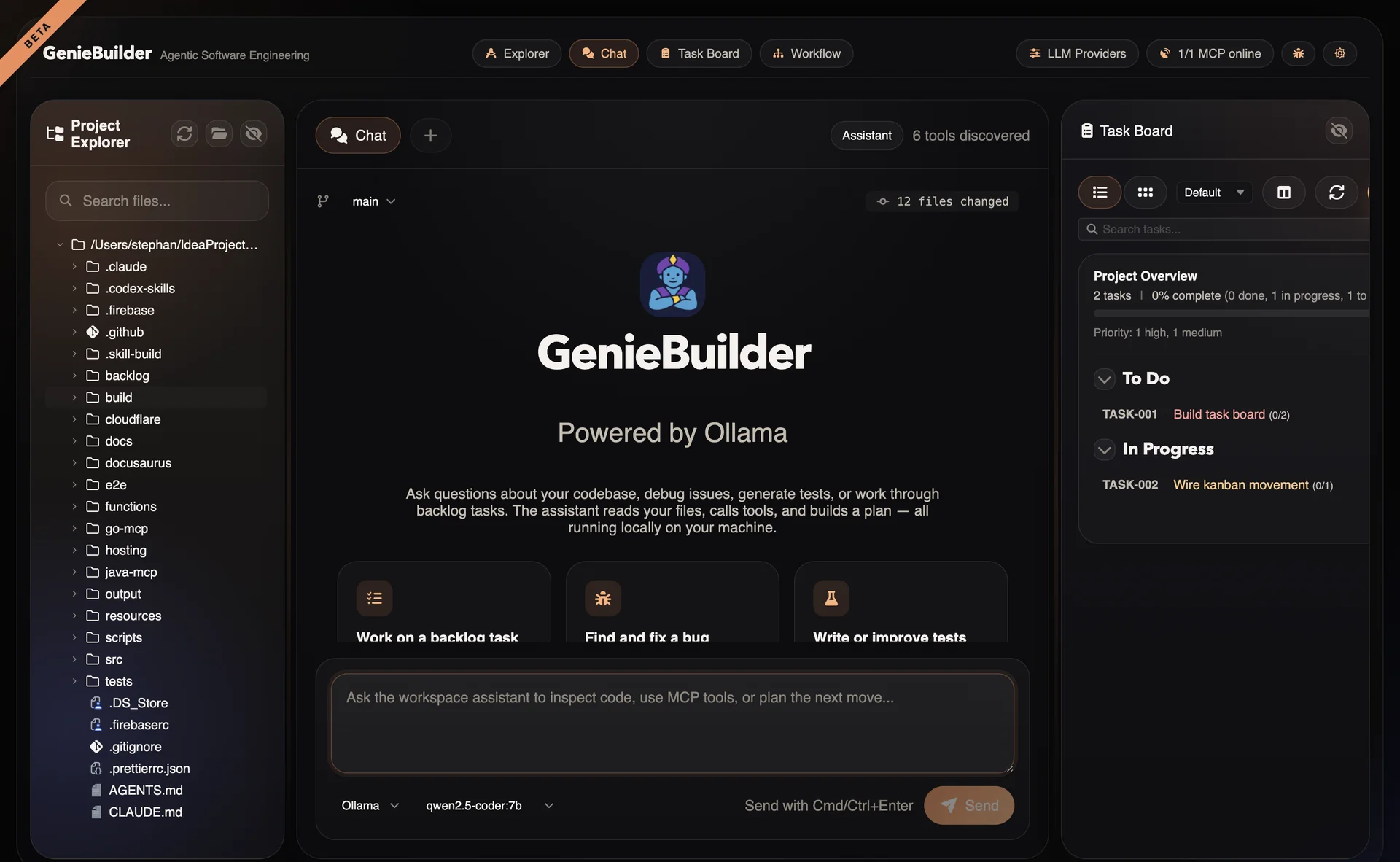
Layout Features
- Resizable panels: Drag dividers to adjust column widths
- Collapsible sidebar: Hide/show left and right panels
- Bottom panel: Toggle chat visibility with keyboard shortcut
- Persisted layout: Your preferred layout is saved across sessions
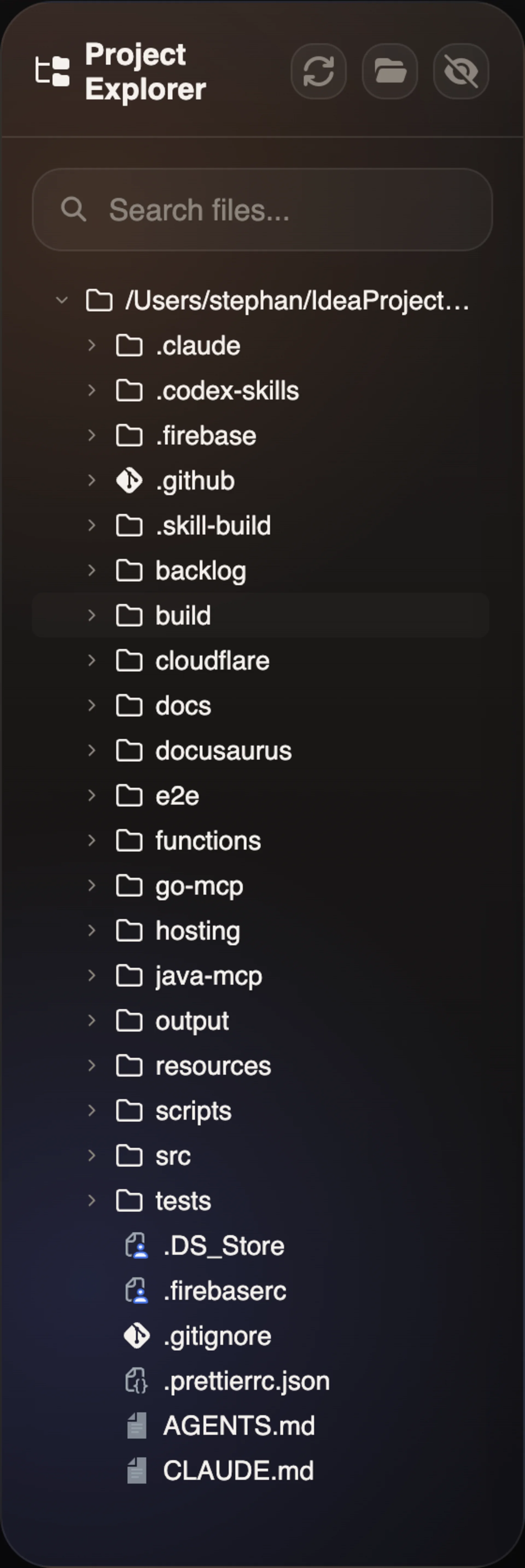
Project Explorer
The left sidebar provides file tree navigation:
Multi-tab Chat
The chat panel is the primary interface for AI interaction:
- Per-tab providers: Each tab can use a different AI provider or model
- Streaming responses: Real-time token streaming
- Tool execution: MCP tools are available in chat context
- Approval gates: Mutating operations require explicit confirmation
- Markdown rendering: Rich formatting with Shiki code highlighting
Chat Providers
| Type | Providers | Best For |
|---|---|---|
| Cloud | OpenAI, Anthropic, Gemini | High-quality responses, advanced models |
| Local | Ollama, LM Studio, llama.cpp | Privacy, offline use, cost control |
| CLI | Claude Code, Kimi, Codex | Specialized agent capabilities |
Built-in Editor
A full-featured code editor powers the integrated editing experience:
Supported languages:
- Java (with JDTLS integration)
- TypeScript/JavaScript
- Python
- Go
- Rust
- HTML, XML, JSON, YAML, CSS
- Markdown with live preview
Editor features:
- Syntax highlighting
- Auto-indentation
- Bracket matching
- Multiple cursors
- Search and replace
- Save through IPC
Task Management
Backlog integration provides task workflows:
- Task list: Browse and filter tasks
- Kanban board: Visual task status tracking
- Task details: Edit title, description, acceptance criteria
- MCP-backed: All operations go through MCP tools
- Git integration: Branch naming from task context
Workflow Engine
Visual workflow designer for automation:
- Node types: Start, Step, Decision, End
- Executors: Chat providers or CLI runners
- Tool access: Git, Backlog, Shell per step
- Templates: Dynamic variable substitution
- Execution: Real-time run monitoring
- Keyboard shortcuts: Press ? in the workflow editor to see all shortcuts
See Workflow Examples for detailed documentation.
MCP Integration
Model Context Protocol is the backbone of GenieBuilder's extensibility:
Default MCP servers:
- Backlog: Task management tools
- GenieBuilder Tools: File, shell, git, and task management tools
Tool categories:
- Git tools: Branch, commit, diff, status
- Backlog tools: Task CRUD operations
- Shell tools: Execute commands with approval
CLI Runners
External CLI-based AI agents can be integrated:
- Claude Code: Anthropic's agentic coding tool
- Kimi CLI: Moonshot AI's efficient coder
- Codex CLI: OpenAI's code review tool
- Custom CLI: Bring your own CLI tool
See CLI Runners for configuration details.
Settings & Configuration
Settings are organized into categories:
| Category | Settings |
|---|---|
| General | Theme, layout, analytics |
| Chat | Default provider, auto-approve tools |
| Providers | API keys, base URLs, models |
| CLI Runners | Executable paths, arguments |
| MCP Servers | Sidecar configuration |
| Workflows | Default templates |
Keyboard Shortcuts
| Shortcut | Action |
|---|---|
Ctrl/Cmd + Enter | Send chat message |
Ctrl/Cmd + S | Save current file (in editor) |
Ctrl/Cmd + Shift + I | Toggle DevTools |
Additional keyboard shortcuts for the code editor (find, replace, etc.) are available when editing files.
Security Model
Security is built into the architecture:
- Safe storage: API keys encrypted when OS supports it
- Tool approvals: Mutating operations require confirmation
- Workspace isolation: Symlinks rejected to prevent escape
- Sandboxed execution: MCP tools run in separate processes
Performance Limits
Current Beta limits for predictable performance:
| Resource | Limit | Rationale |
|---|---|---|
| File tree items | 5,000 | Prevent UI freezing on large repos |
| File size | 1 MiB | Large files opened as unsupported |
| Chat history | Runtime-local | Not yet persisted across restarts |
| Workflow iterations | Configurable | Prevent infinite loops |
Next Steps
- Installation — Get GenieBuilder running
- Quick Start — Your first task-driven session
- Chat Workspace — Deep dive into multi-tab chat
- Workflow Examples — Learn workflow automation