Workflow Examples
GenieBuilder includes a library of pre-built workflow templates that demonstrate different automation patterns for development tasks. These examples range from simple single-prompt workflows to complex multi-agent pipelines with review loops.
Workflow Demo
Watch this demo video to see the workflow editor in action:
What is a Workflow?
A workflow in GenieBuilder is a directed graph of execution steps that can:
- Execute prompts against LLM providers (cloud or CLI runners)
- Make decisions based on verdict outputs
- Loop and retry based on conditions
- Access Git, Backlog tasks, and shell tools
- Create branches, commits, and pull requests
Workflow Structure
Every workflow consists of:
| Component | Description |
|---|---|
| Nodes | Steps in the workflow (start, step, decision, end) |
| Edges | Connections between nodes with optional conditions |
| Templates | Branch names, commit messages, and PR descriptions using variable substitution |
| Tool Sets | Git, Backlog, and shell tool permissions per step |
Template Variables
Workflows support dynamic templating using {{variable}} syntax:
{{task.id}}           - Task identifier (e.g., "TASK-123")
{{task.title}}        - Task title
{{task.description}}  - Task description
{{task.slug}}         - URL-friendly task title
{{run.id}}            - Unique workflow run ID
{{run.iteration}}     - Current iteration number
{{run.maxIterations}} - Maximum allowed iterations
{{run.branchName}}    - Generated git branch name
{{workspace.projectPath}} - Absolute path to project root
{{git.baseBranch}}    - Base branch for PRs
{{workflow.commitMessage}} - Generated commit message
{{workflow.prBody}}   - Generated PR description
{{steps.<step-id>.summary}}  - Output from a previous step
{{steps.<step-id>.findings}} - Structured findings from verdict
Example Workflows
1. One Prompt (Beginner)
The simplest possible workflow—send a single prompt to an LLM and get a response.
Use case: Quick project analysis, README summaries, or simple questions.
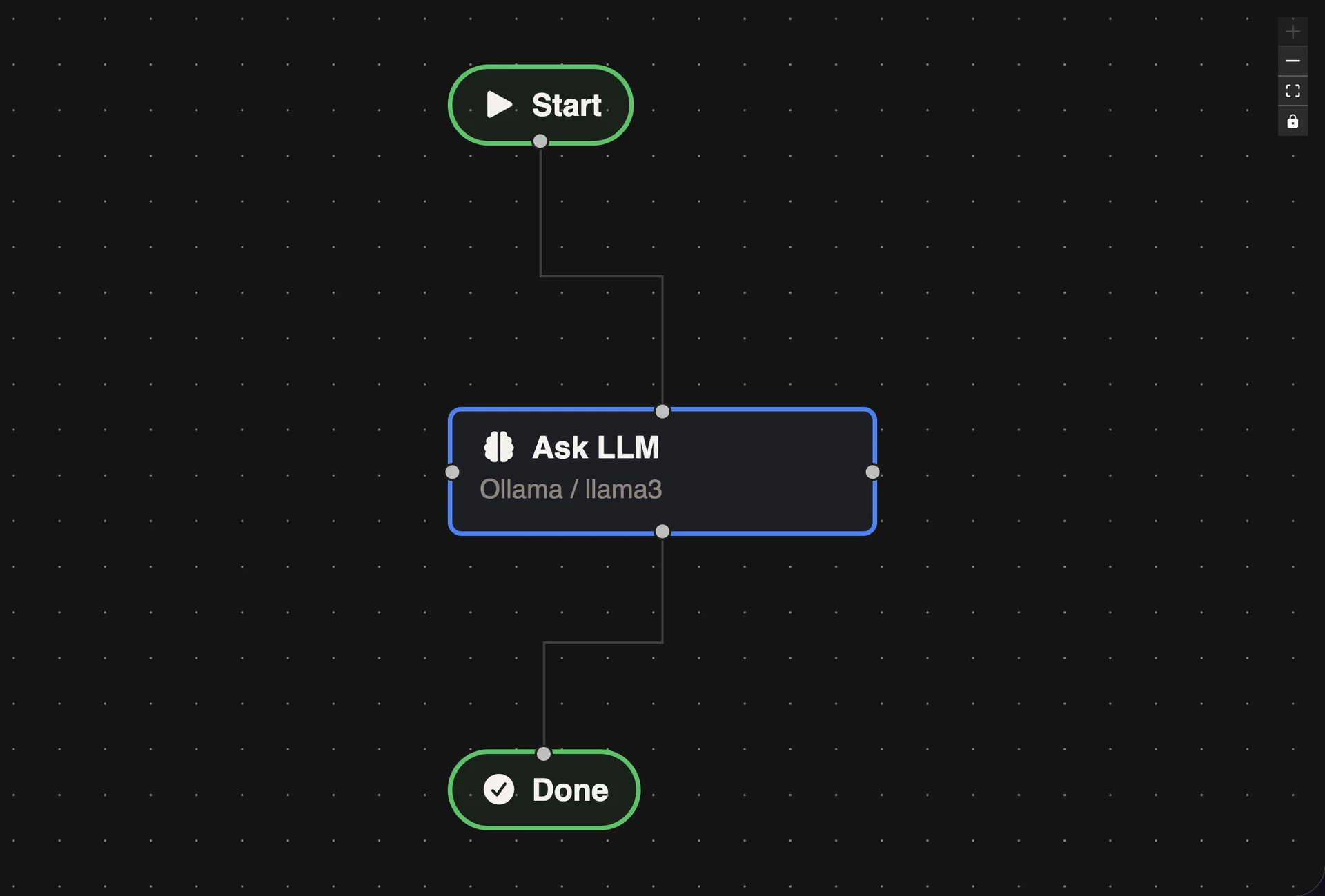
[Start] → [Ask LLM] → [Done]
Key configuration:
- No git branch created (
createGitBranch: false) - Single step with basic prompt template
- No tool access required
2. Decision Branching (Beginner)
Demonstrates verdict-based routing where a step produces a pass/fail verdict, and a decision node routes to different handlers.
Use case: Conditional processing based on AI evaluation.
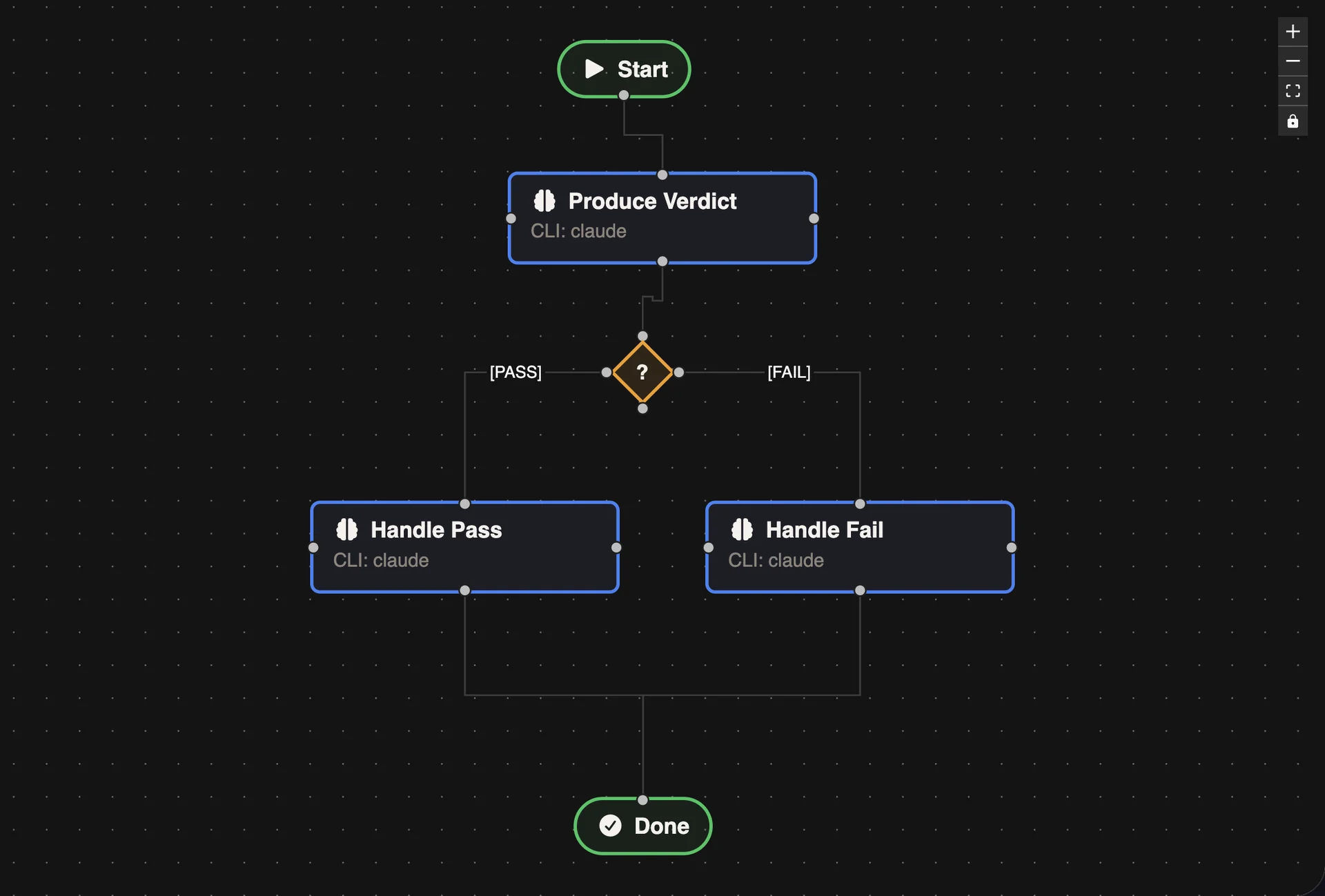
Key concept: Steps can output structured verdicts:
{
  "version": "1.0",
  "verdict": "pass",
  "summary": "All checks passed",
  "findings": []
}
3. Retry Loop (Beginner)
Shows iteration-based retry logic where a check step can fail, trigger a retry step, and loop back for another attempt.
Use case: Flaky operations that may succeed on retry.
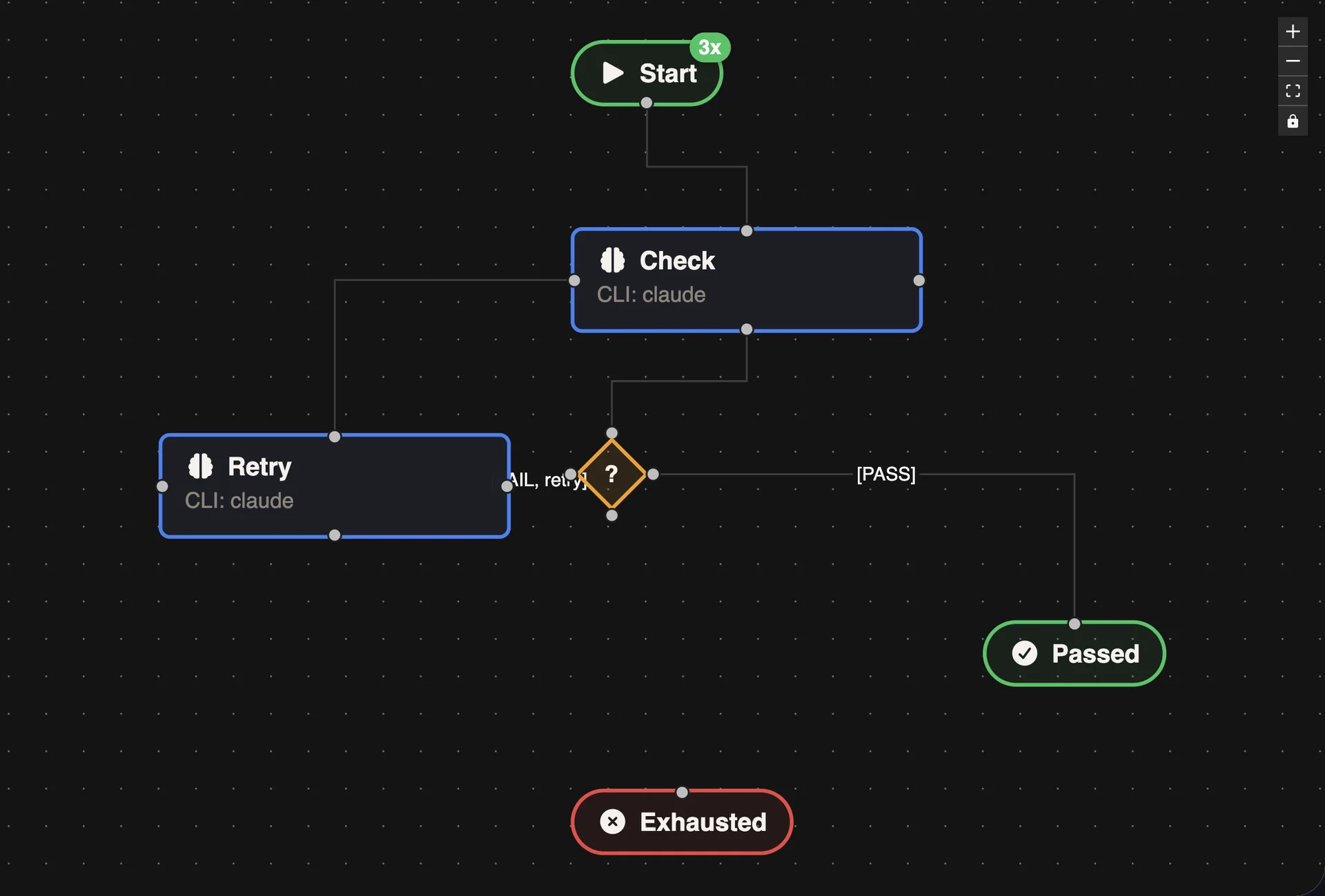
Key concept: Decision edges use context variables:
canRetry: true- When iterations remainiterationsExhausted: true- When max iterations reached
4. Code Review (Intermediate)
AI-powered code review workflow that analyzes staged changes and provides structured feedback.
Use case: Automated pre-commit code review.
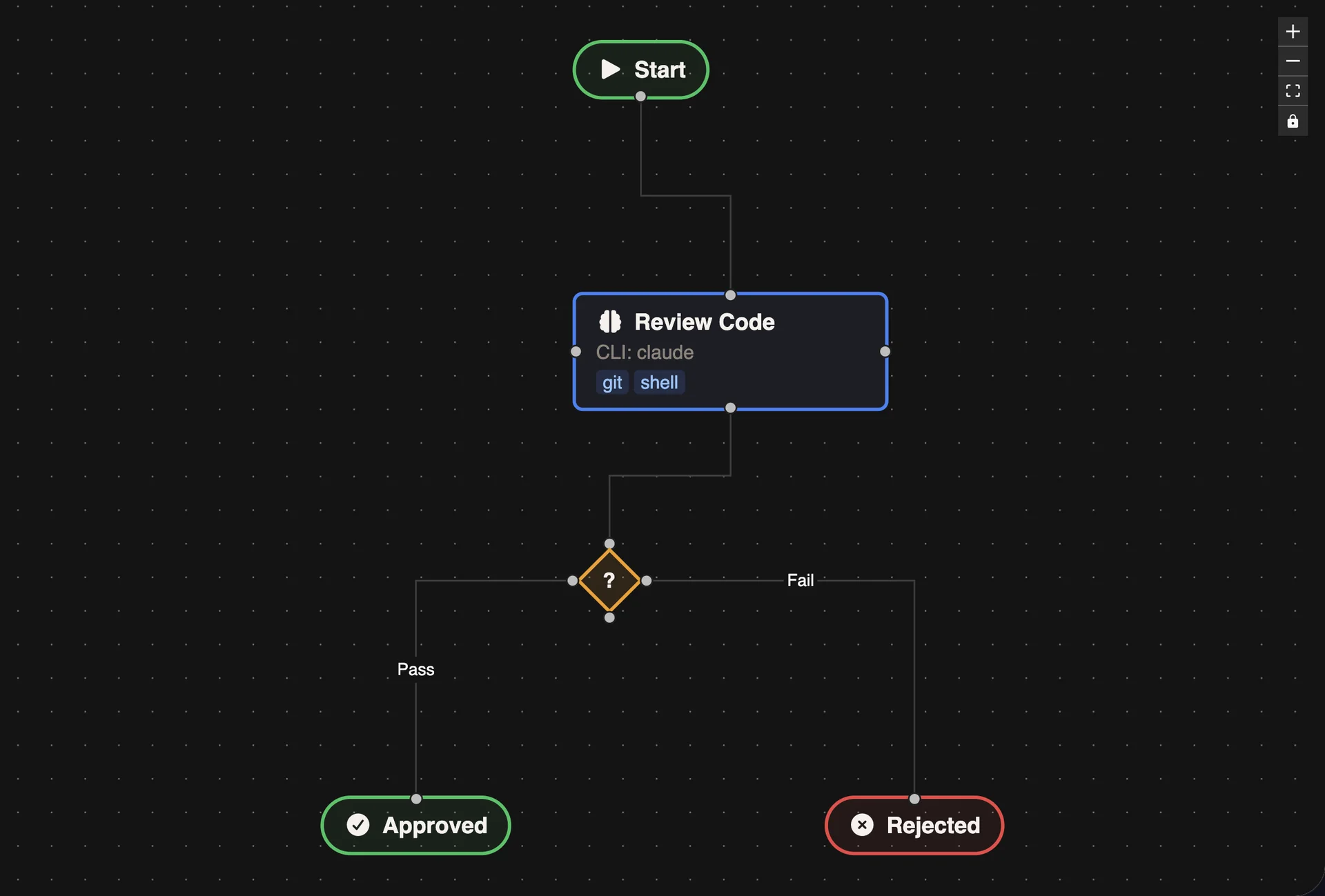
Features:
- Git tool access to read staged changes
- Verdict output with detailed findings
- Each finding includes severity, file path, message, and suggestion
Verdict findings structure:
{
  "severity": "critical" | "warning" | "suggestion",
  "file": "/absolute/path/to/file",
  "line": 42,
  "message": "Description of the issue",
  "suggestion": "How to fix it"
}
5. Bug Fix Pipeline (Intermediate)
End-to-end bug fix automation: reproduce, implement, test, review, and commit.
Use case: Complete bug resolution workflow.
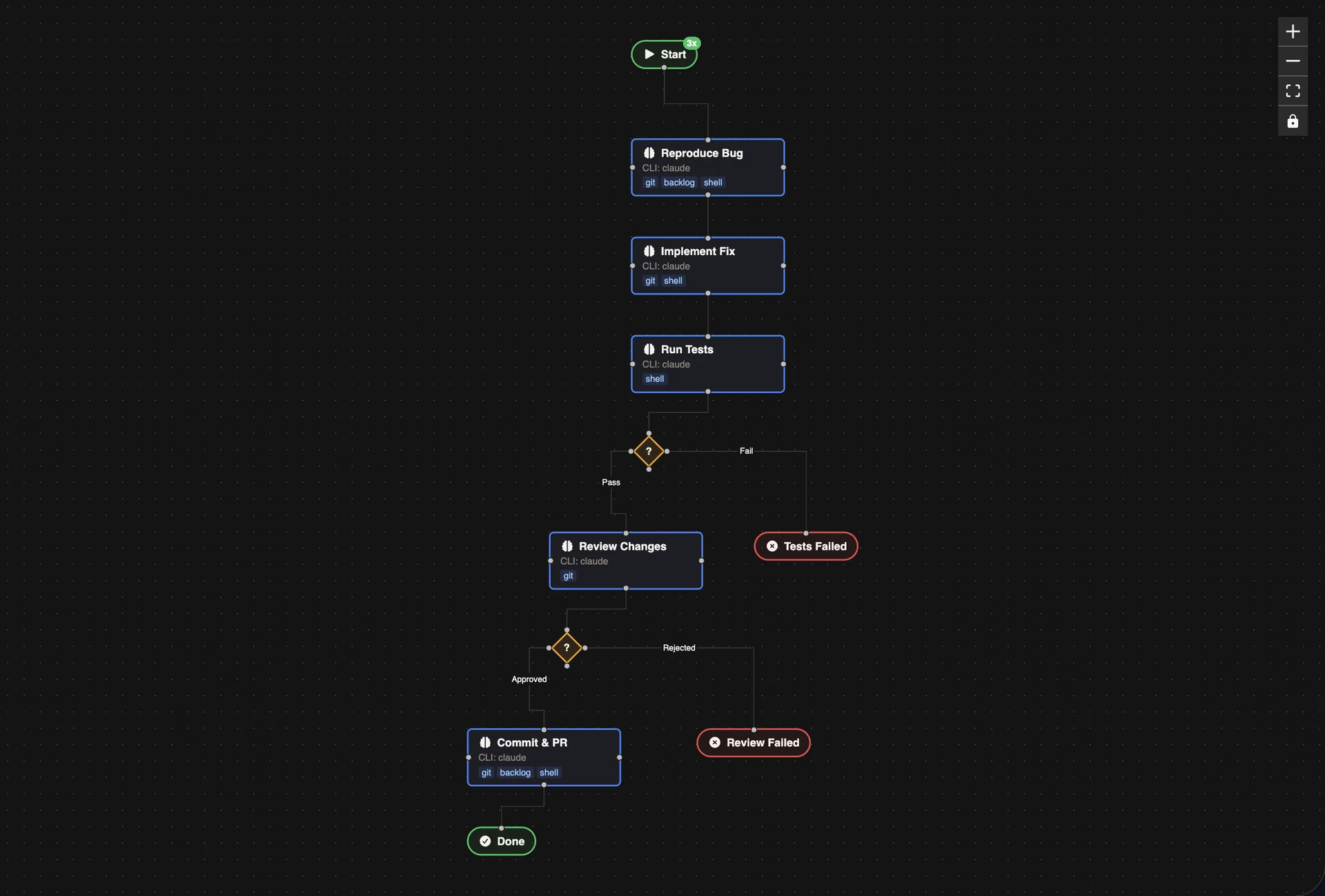
Features:
- Multi-step pipeline with decision gates
- Backlog task context available throughout
- Automatic branch naming from task
- Structured commit messages
6. Documentation Generator (Intermediate)
Analyzes code, generates documentation, reviews for accuracy, and commits.
Use case: Automated documentation updates.
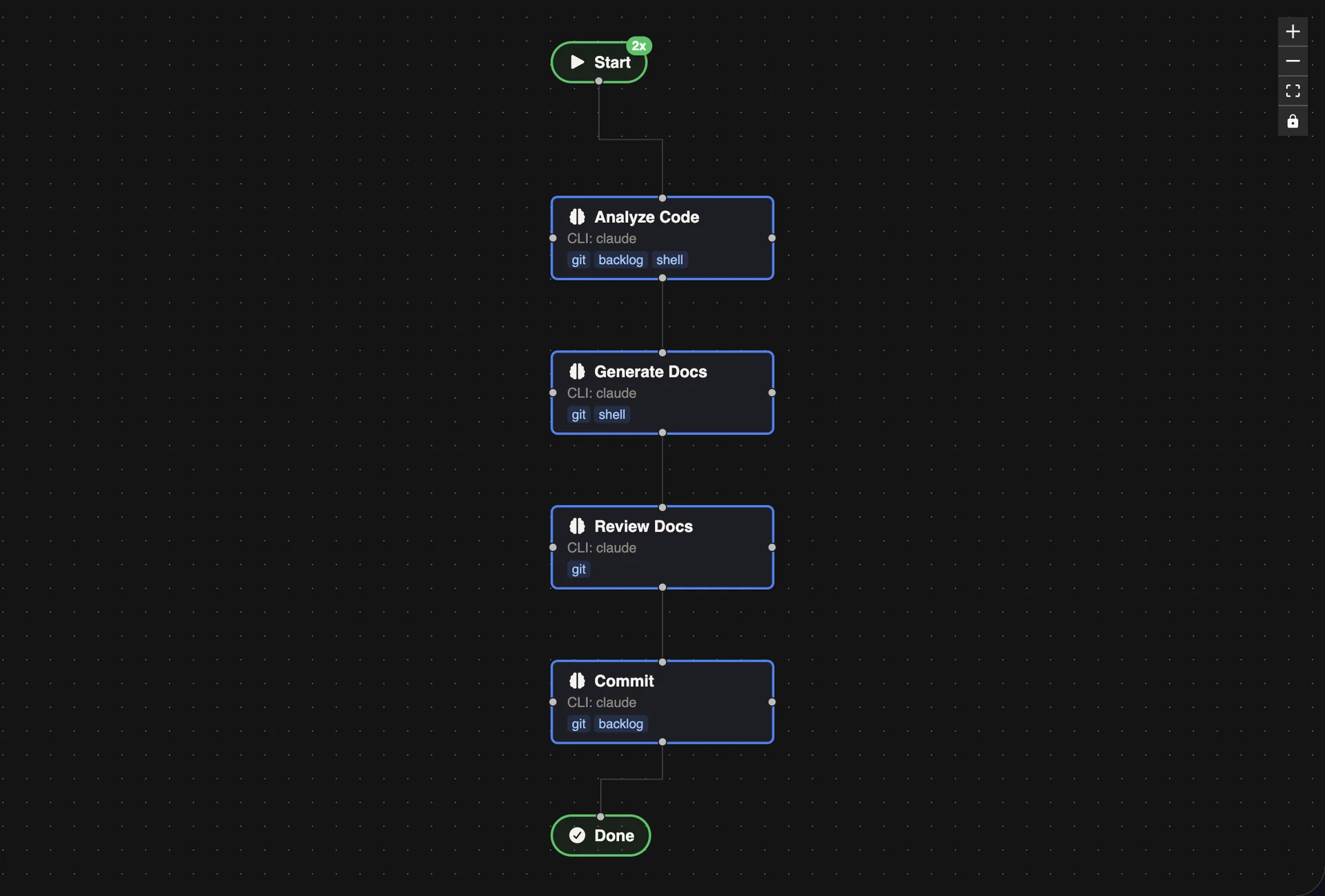
Steps:
- Analyze Code - Identify APIs and patterns needing docs
- Generate Docs - Create documentation with examples
- Review Docs - Verify accuracy and completeness
- Commit - Save changes with structured message
7. Reviewer Feedback Loop (Advanced)
A sophisticated implementation pattern where one agent implements and another reviews, with findings injected back into the fix step.
Use case: High-quality code changes with AI-powered review.
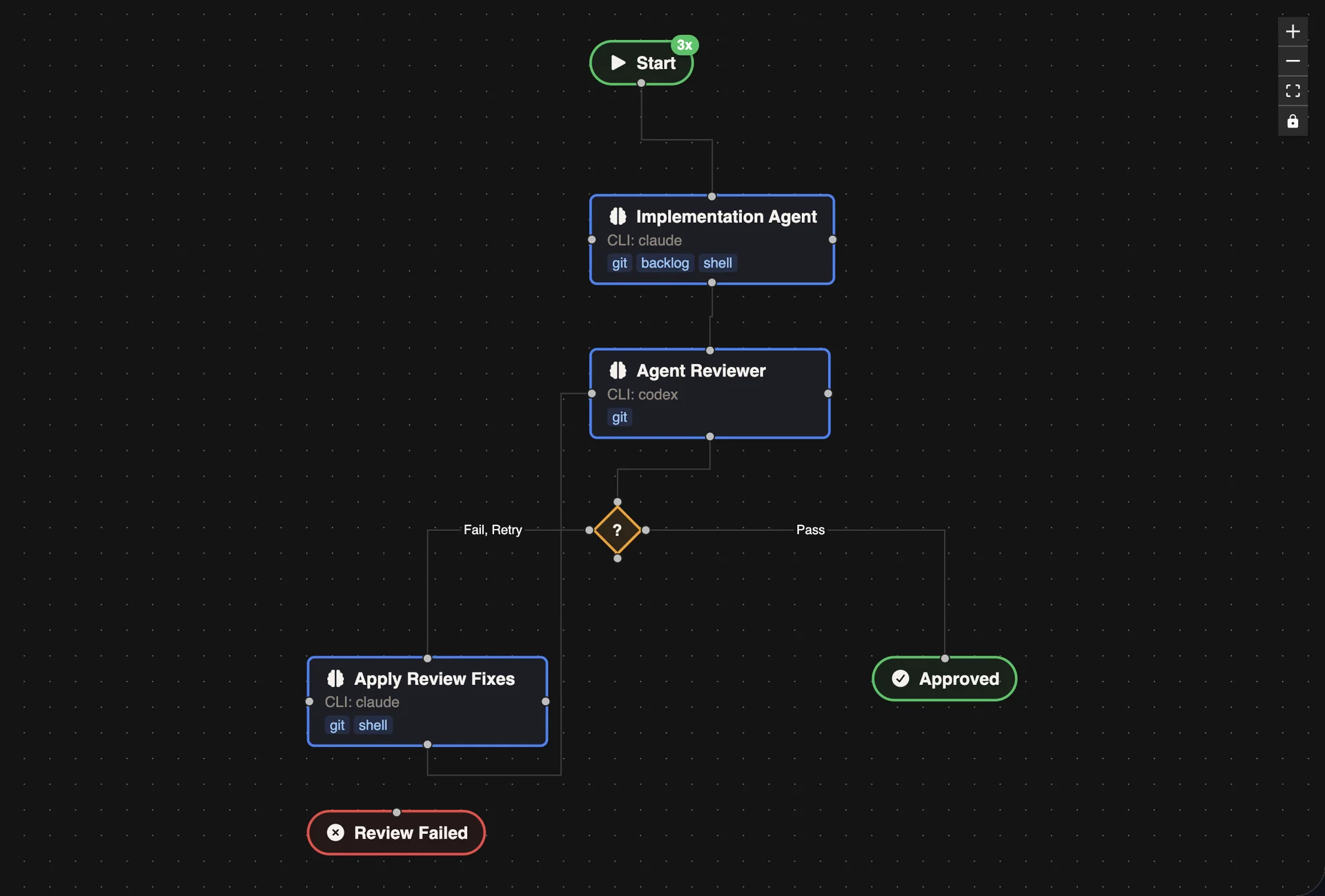
Key concept: Cross-step data injection using {{steps.<id>.findings}}.
Example prompt using findings:
The reviewer found issues:

Review summary:
{{steps.agent-reviewer.summary}}

Review findings:
{{steps.agent-reviewer.findings}}

Fix all reported issues in the current working tree.
8. Implement & Review (Advanced)
Full development pipeline with implementation, testing, review with looping, and PR creation.
Use case: Complete feature implementation workflow.
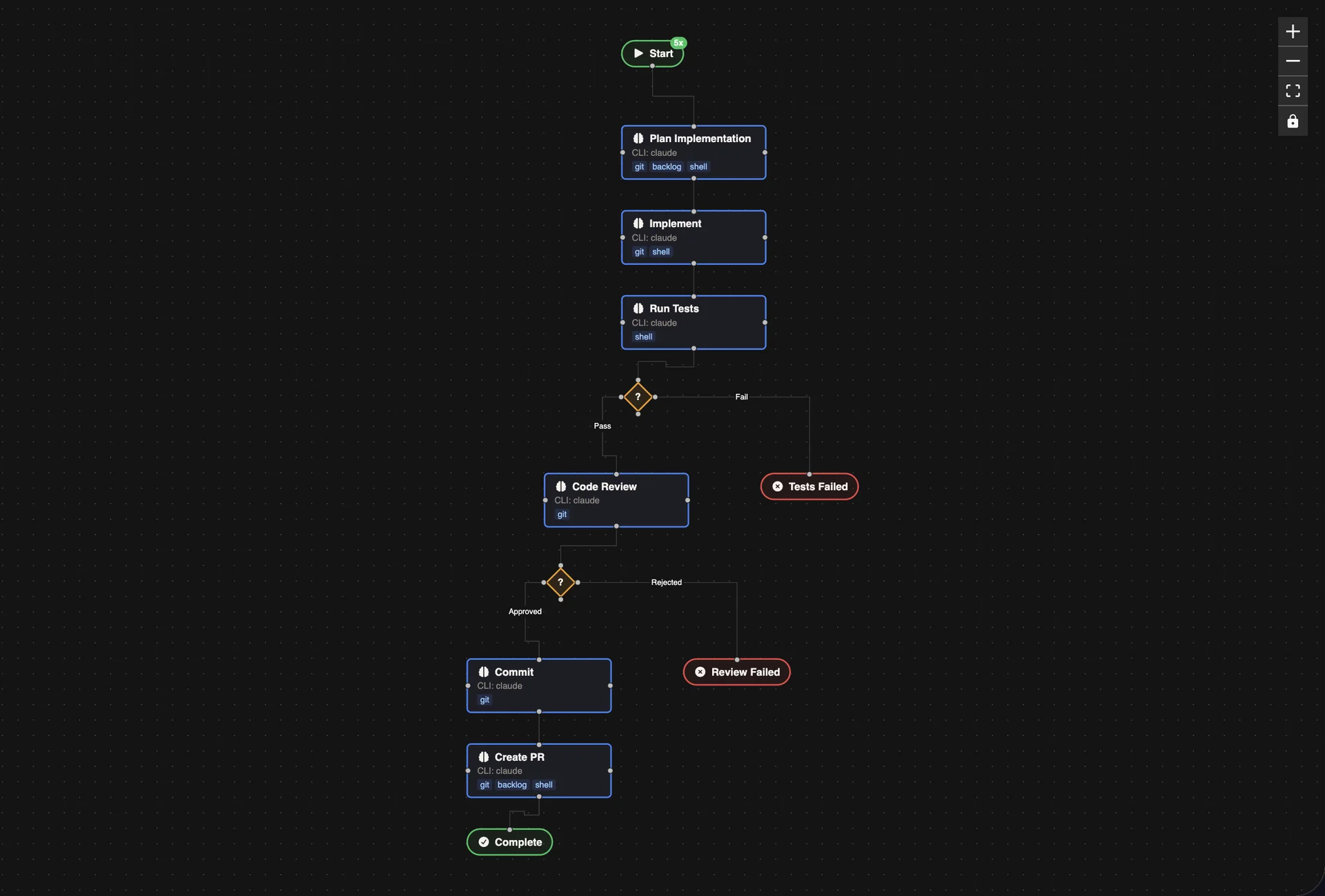
Pipeline:
- Plan Implementation - Analyze task and plan approach
- Implement - Write the code changes
- Run Tests - Execute test suite with verdict
- Code Review - AI review with findings
- Commit - Stage and commit changes
- Create PR - Generate pull request
Features:
- Up to 5 iterations for review/fix loops
- Automatic branch creation from template
- Full git workflow integration
- Backlog task closure on completion
The Default Workflow
GenieBuilder includes a built-in default workflow optimized for the "Claude implements / Codex reviews" pattern:
This workflow demonstrates:
- Multi-agent collaboration: Different CLI runners for implement vs review
- Automatic branching: Creates and checks out feature branches
- Review loops: Up to 3 iterations of fix/review
- Full git integration: Commits, pushes, and creates PRs
- Task management: Automatically closes Backlog tasks on success
Creating Custom Workflows
You can create custom workflows by:
- Starting from an example - Clone and modify existing templates
- Building from scratch - Define nodes, edges, and templates
- Using the visual editor - Drag-and-drop workflow construction (coming soon)
- Writing JSON directly - See the Workflow JSON Format reference for the complete schema, validation rules, and an importable example
Best Practices
- Use descriptive step labels - Makes execution logs readable
- Set appropriate maxIterations - Prevents infinite loops
- Grant minimal tool permissions - Only enable tools a step actually needs
- Use absolute file paths - In verdict findings for proper linking
- Test with
createGitBranch: false- For workflows that don't modify code
Tool Set Configuration
Each step declares which tools it needs:
toolSet: {
  git: true,      // Read/write git operations
  backlog: true,  // Task management
  shell: true     // Execute shell commands
}
Tools are disabled by default for safety. Only enable what the step requires.
Keyboard Shortcuts
The workflow editor supports keyboard shortcuts for common actions. Press ? at any time or click the keyboard icon in the toolbar to open the shortcuts help modal.
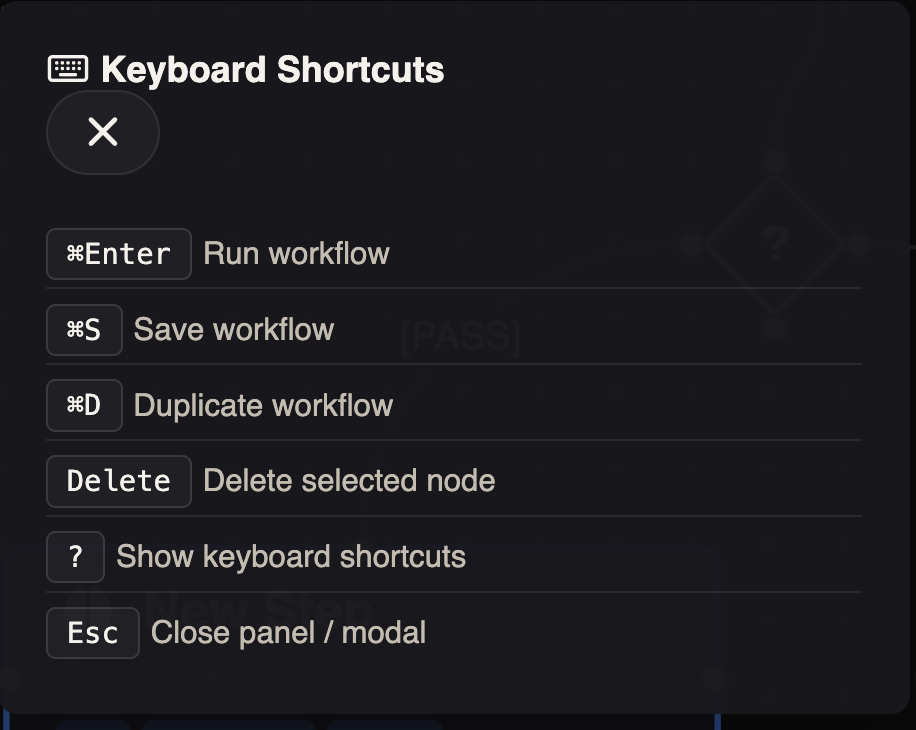
Shortcut hints are also shown in button tooltips on hover. Shortcuts are automatically disabled when typing in input fields.
Executing Workflows
Workflows can be executed:
- Manually - Select a workflow and task, then click Run
- With retries - Failed or cancelled runs can be retried
- With context - Task details are injected into templates automatically
During execution:
- Real-time progress is displayed in the workflow panel
- Individual step outputs can be inspected
- The run can be cancelled at any time
- Conversation logs are saved for debugging
Node Configuration
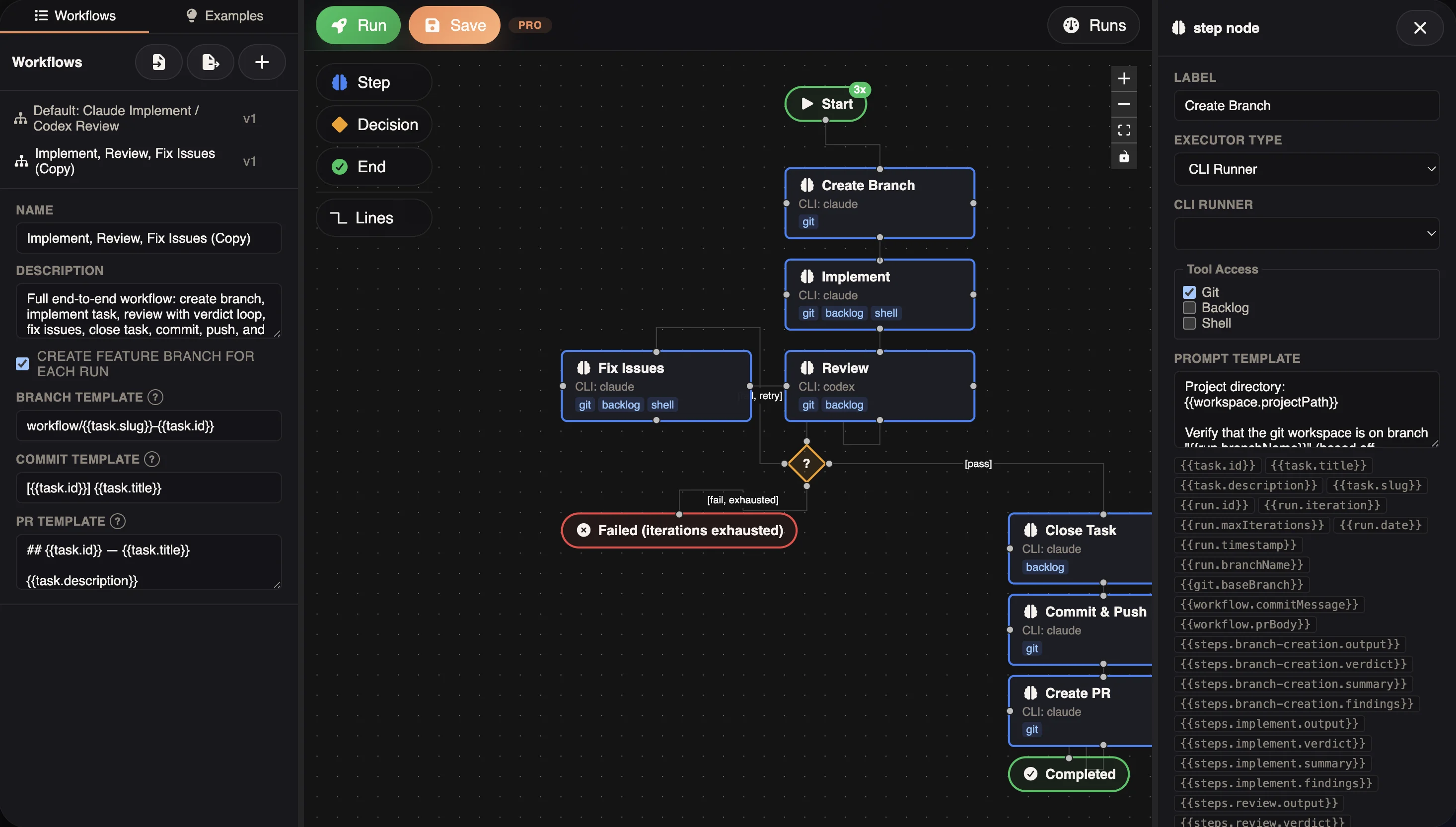
Click any node in the workflow editor to open its configuration panel. Each step node lets you configure:
- Executor Type — Choose between a cloud Chat Provider or a CLI Runner
- CLI Runner / Provider — Select which agent executes the step (e.g., Claude, Codex, Kimi)
- Tool Access — Enable Git, Backlog, and Shell tools per step
- Prompt Template — Define the prompt with template variable support
- Verdict — Optionally require structured verdict output for decision routing
Runs Monitor
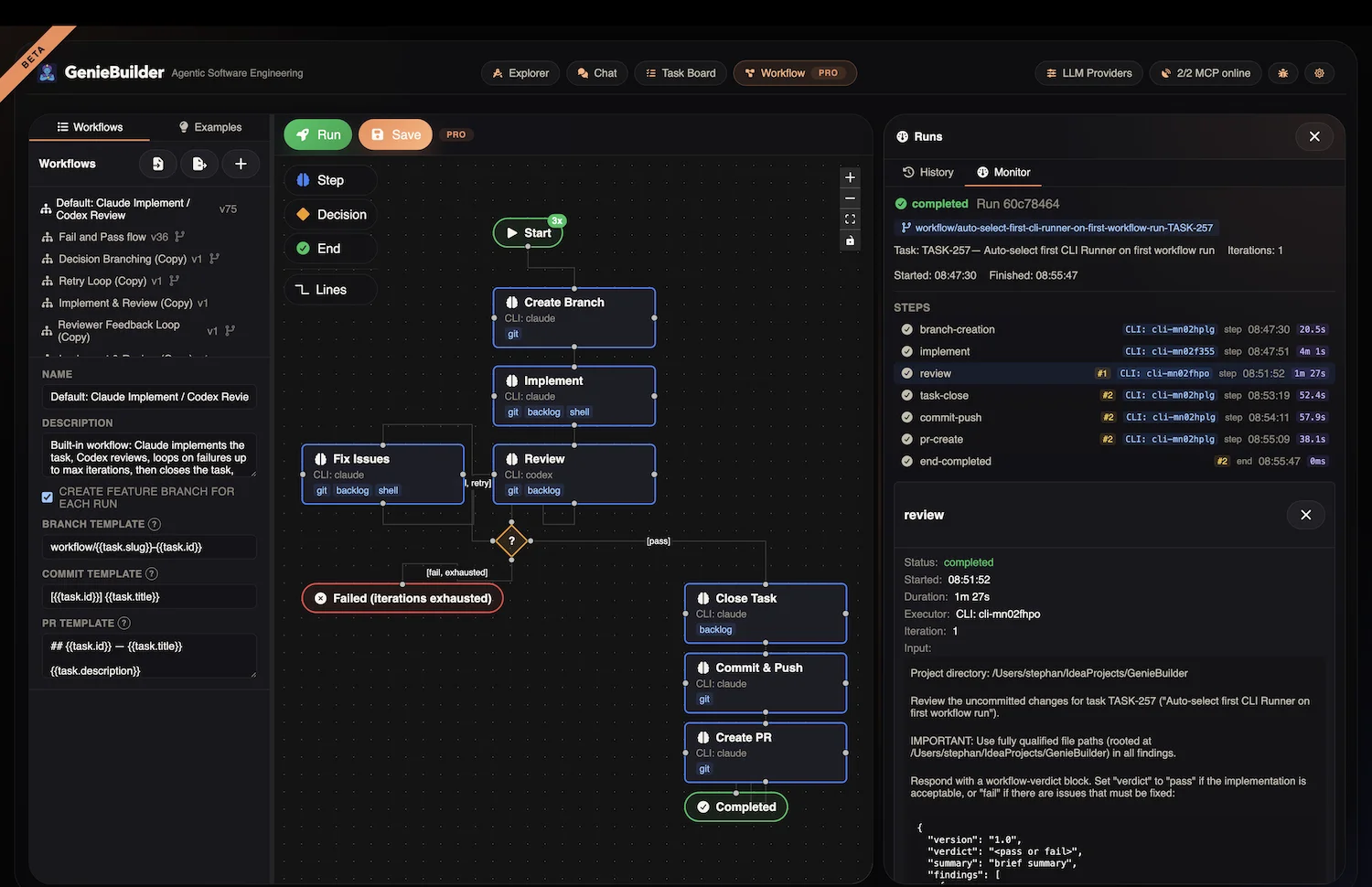
Every workflow execution is recorded in the Runs panel. Click any completed run to inspect:
- Step-by-step status — See which steps passed, failed, or were skipped
- Timing — Start and finish timestamps for each step
- Executor details — Which CLI Runner or provider handled each step
- Full output — The complete response from each agent, including code changes and review findings
Workflow Verdict Format
Steps that set expectsVerdict: true should output JSON in this format:
{
  "version": "1.0",
  "verdict": "pass" | "fail",
  "summary": "Human-readable summary",
  "findings": [
    {
      "severity": "critical" | "warning" | "suggestion",
      "file": "/absolute/path/to/file",
      "line": 42,
      "message": "Issue description",
      "suggestion": "How to fix"
    }
  ]
}
The workflow engine parses this output and makes it available to decision nodes and subsequent steps via template variables.