Built-in Editor
GenieBuilder includes a full-featured code editor powered by a modern editing component. It provides syntax highlighting, editing capabilities, and integration with the workspace—all without leaving the desktop app.
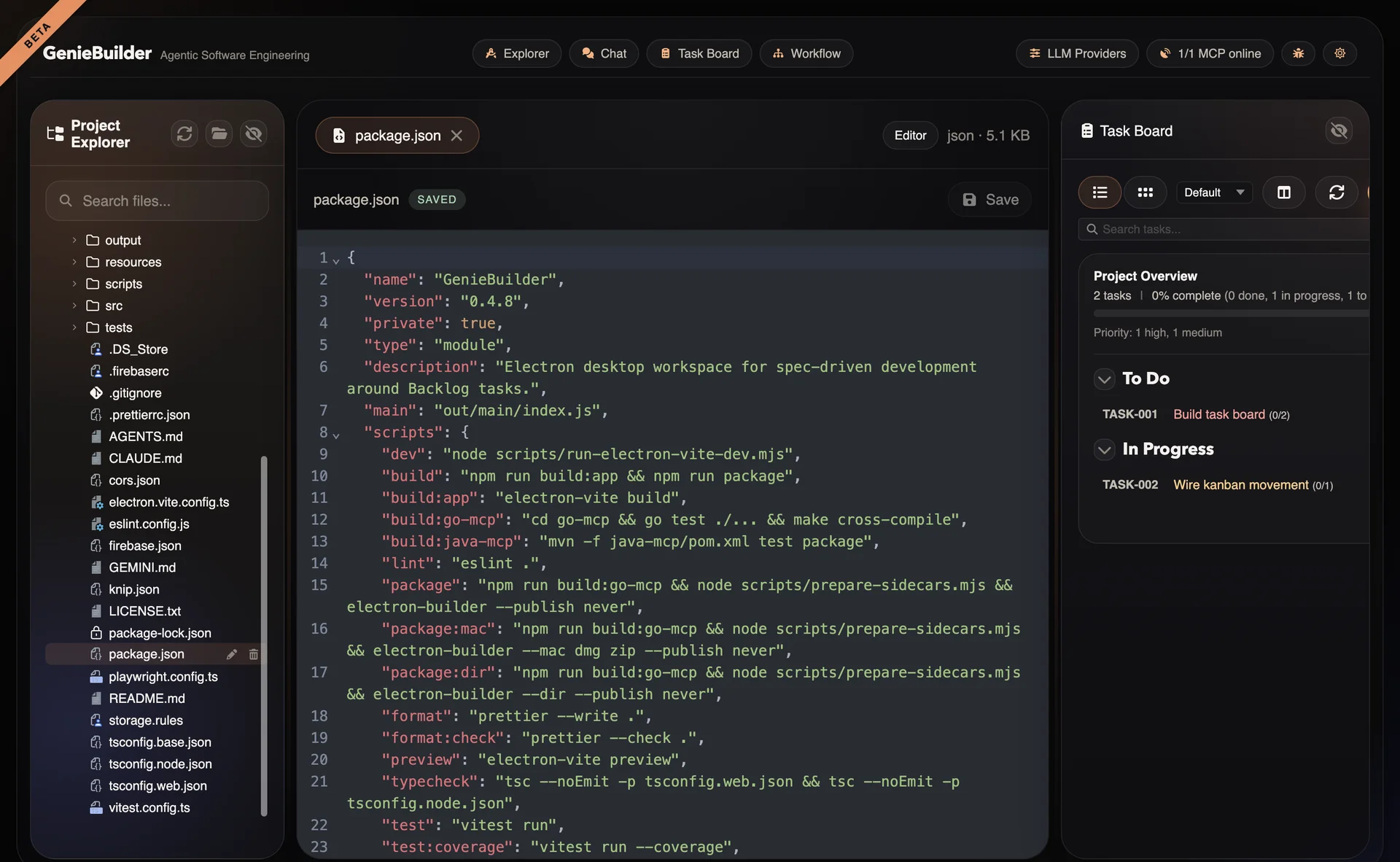
Supported Languages
The editor provides first-class support for:
Programming Languages
| Language | Syntax Highlighting | Notes |
|---|---|---|
| Java | ✅ Full | |
| TypeScript | ✅ Full | Includes JSX/TSX support |
| JavaScript | ✅ Full | ES2023+ support |
| Python | ✅ Full | Python 3.x syntax |
| Go | ✅ Full | Go 1.21+ support |
| Rust | ✅ Full | Rust 2021 edition |
Markup & Config
| Language | Syntax Highlighting |
|---|---|
| HTML | ✅ Full |
| XML | ✅ Full |
| JSON | ✅ Full |
| YAML | ✅ Full |
| Markdown | ✅ Full |
| CSS/SCSS | ✅ Full |
Fallback
Files with unsupported extensions open as plain text with basic editing capabilities.
Editor Features
Core Editing
- Multi-cursor editing —
Alt/Cmd + Clickto place multiple cursors - Block selection —
Alt/Cmd + Shift + Dragfor column selection - Auto-indentation — Smart indentation based on language
- Bracket matching — Highlight matching brackets
- Code folding — Collapse/expand code blocks
Search & Replace
- Find —
Ctrl/Cmd + F - Replace —
Ctrl/Cmd + H - Find in files —
Ctrl/Cmd + Shift + F(project-wide) - Regex support — Pattern matching in search
Navigation
- Go to line —
Ctrl/Cmd + G - Symbol navigation — Jump to definitions
Visual
- Line numbers — Toggle in settings
- Active line highlight — Current line indication
- Selection highlight — Occurrence highlighting
- Whitespace rendering — Optional visible whitespace
Workspace Integration
File Operations
Files are opened through workspace-scoped IPC:
- File selected in explorer
- IPC request to main process
- Path validation — Ensure within workspace root
- Size check — Reject files > 1 MiB
- Content loaded and sent to renderer
- Editor tab opened with content
Save Flow
User presses Ctrl+S
        ↓
Editor content sent via IPC
        ↓
Main process validates path
        ↓
File written to disk
        ↓
Success/error returned
        ↓
Editor shows save status
Auto-save
Optional auto-save on:
- Focus change
- Delay after typing (configurable)
- Window close
File Explorer Integration
Opening Files
- Click — Open in current tab
- Double-click — Open in new tab
- Right-click — Context menu options
File Tree
- Respects .gitignore — Hidden files filtered
- Folder expansion — Lazy-loaded children
- File icons — Language-based icons
- Active file highlight — Current tab indicated
Limits
For predictable performance:
| Limit | Value | Rationale |
|---|---|---|
| Visible items | 5,000 | Prevent UI freezing |
| File size | 1 MiB | Large files open as unsupported |
| Nesting depth | 20 levels | Prevent stack overflow |
Security Considerations
Path Validation
- Workspace root enforcement — Files outside root rejected
- Symlink rejection — Prevents path escape
- Path normalization — Resolve
..segments
Content Handling
- Binary file detection — Open as unsupported
- Large file protection — Size limits enforced
- Encoding — UTF-8 default, BOM handling
Editor Settings
Configurable options:
| Setting | Options | Default |
|---|---|---|
| Theme | Light, Dark, System | System |
| Font size | 10-24px | 14px |
| Font family | Monospace fonts | JetBrains Mono |
| Line numbers | On, Off | On |
| Word wrap | On, Off | Off |
| Tab size | 2, 4, 8 | 4 |
| Insert spaces | Yes, No | Yes |
| Auto-save | On, Off | Off |
Keyboard Shortcuts
The built-in editor supports standard keyboard shortcuts:
| Shortcut | Action |
|---|---|
Ctrl/Cmd + S | Save file |
Ctrl/Cmd + / | Toggle comment |
Ctrl/Cmd + Shift + K | Delete line |
Alt + ↑/↓ | Move line up/down |