Chat Workspace
The chat workspace is GenieBuilder's primary interface for AI interaction. It provides multi-tab conversations, real-time streaming responses, and seamless integration with MCP tools.
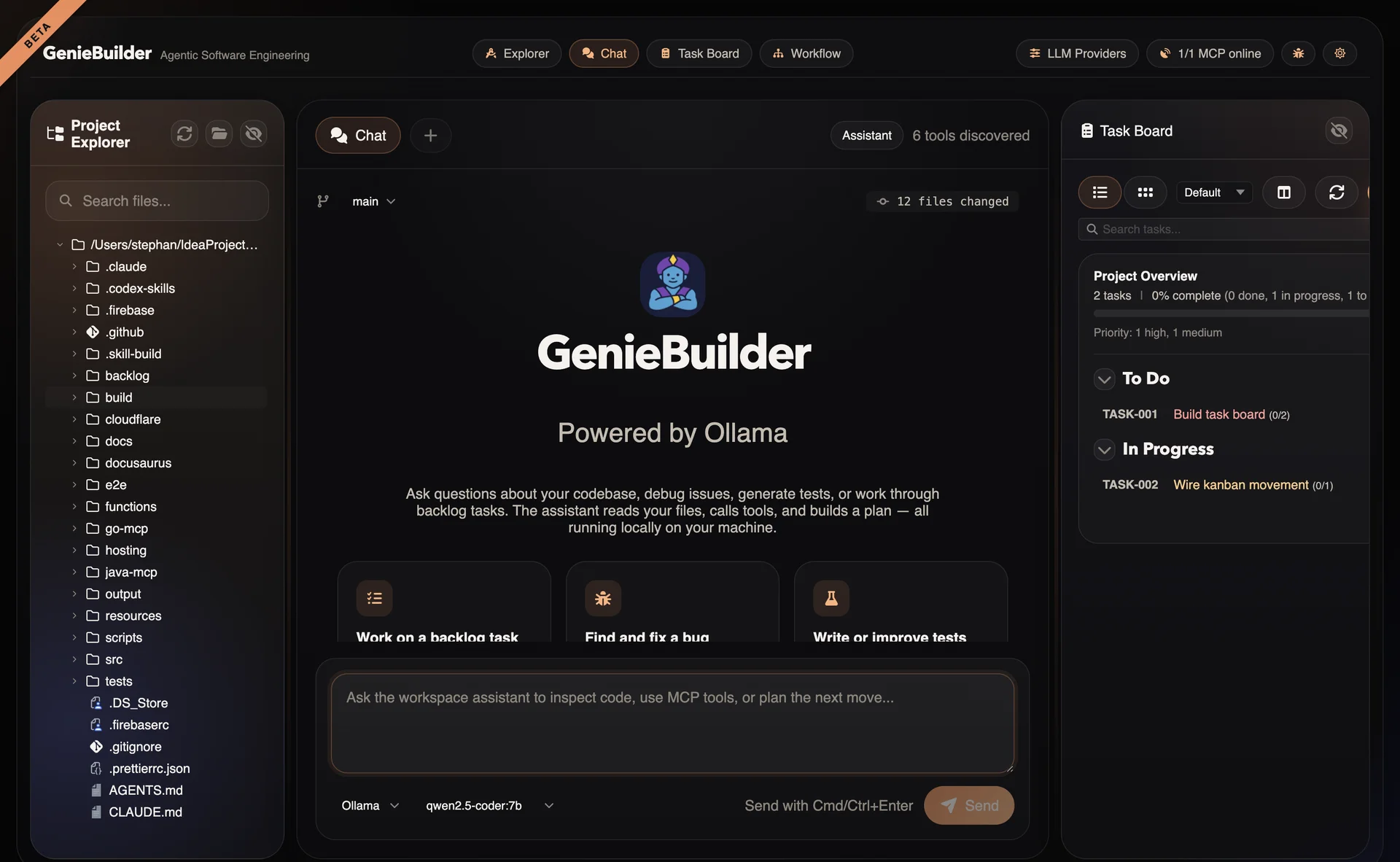
Multi-Tab Architecture
Unlike single-chat interfaces, GenieBuilder allows multiple concurrent conversations:
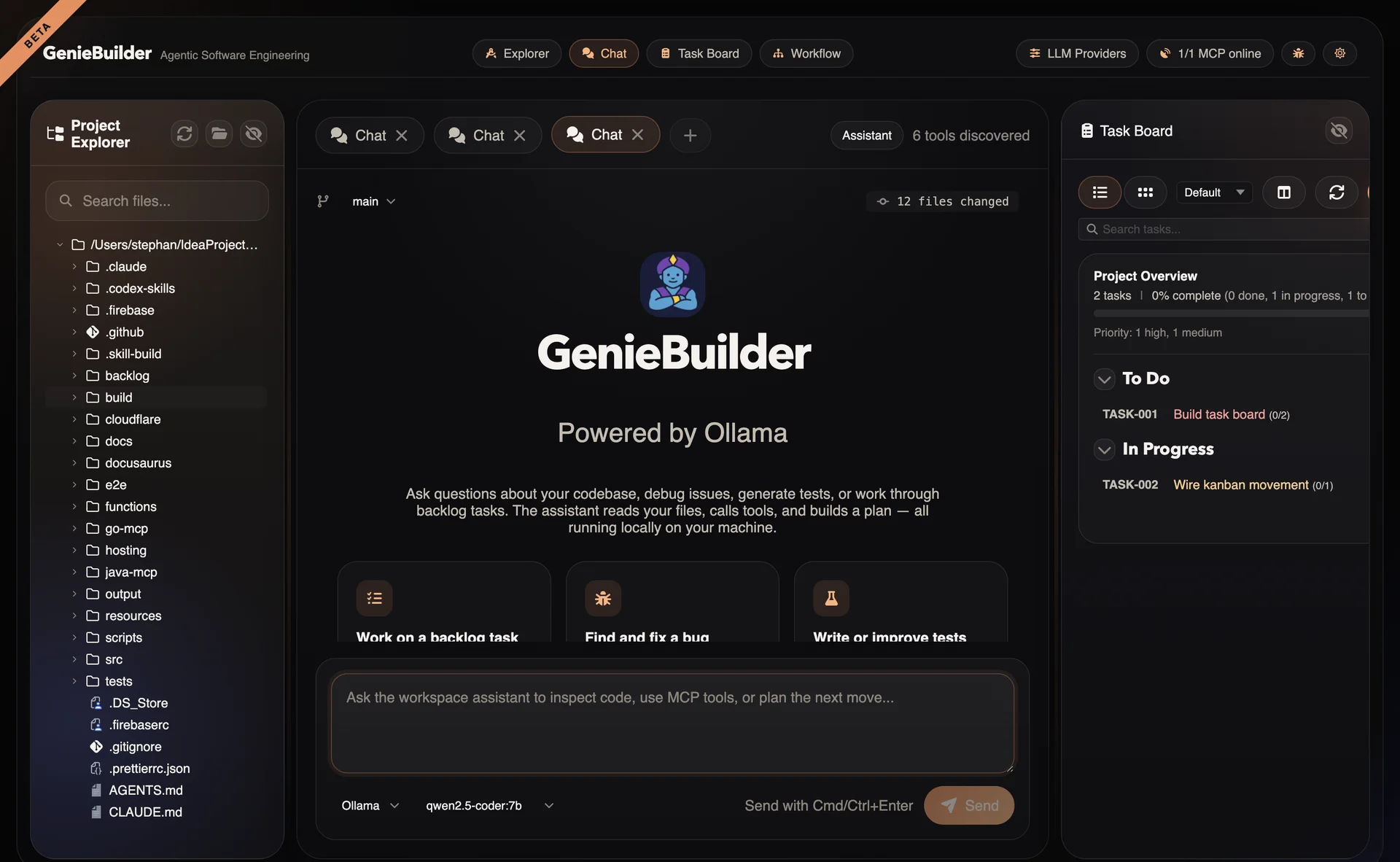
Benefits of multi-tab chat:
- Compare responses from different providers
- Separate contexts (planning vs implementation vs review)
- Preserve conversation history per task
Benefits of multi-tab chat:
- Compare responses from different providers
- Separate contexts (planning vs implementation vs review)
- Preserve conversation history per task
- No need to clear context when switching topics
Per-Tab Configuration
Each tab maintains its own:
- Provider: Cloud or local LLM
- Model: Specific model version
- Context: Conversation history
- Tool access: Enabled MCP tools
Streaming Behavior
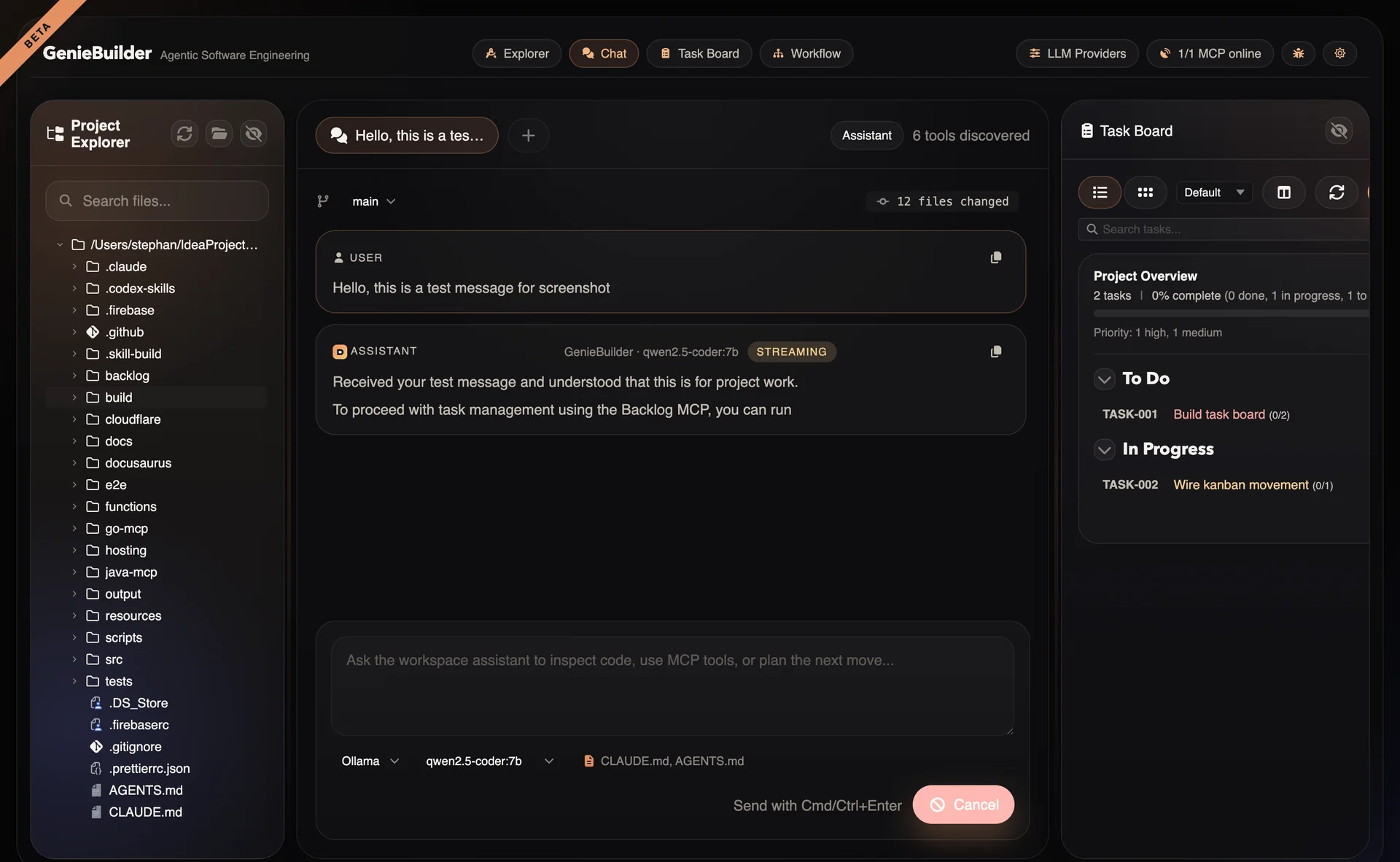
Responses stream in real-time for a responsive experience:
Streaming States
| State | Indicator | Action |
|---|---|---|
| Idle | Static send button | Ready for input |
| Streaming | Pulsing indicator | Receiving tokens |
| Tool Call | Tool icon | Executing MCP tool |
| Waiting | Spinner | Awaiting user approval |
Safety Model
GenieBuilder implements a layered safety approach:
Tool Approvals
Mutating operations require explicit confirmation:
Auto-approved (read-only):
- File reading
- Git status/diff
- Task viewing
Requires approval (mutating):
- File writing
- Git commit/push
- Task status changes
- Shell command execution
Approval dialog shows:
- Tool name and operation
- Affected resources
- Preview of changes (when available)
Provider-Specific Safety
Different providers have different safety characteristics:
| Provider | Safety Notes |
|---|---|
| OpenAI | Built-in content filtering |
| Anthropic | Constitutional AI safety |
| Gemini | Google safety filters |
| Ollama | Local, no external filtering |
| CLI Runners | Depends on CLI tool settings |
Markdown Rendering
Chat messages support rich Markdown formatting:
Code Blocks
Fenced code blocks with syntax highlighting:
```typescript
function greet(name: string): string {
  return `Hello, ${name}!`
}
```
Features:
- Shiki-powered highlighting
- Language auto-detection
- Copy button on hover
- Line numbers (optional)
Other Formatting
- Bold and italic text
- Bullet and numbered lists
- Tables
- Blockquotes
- Inline code
- Links (clickable)
Tool Execution in Chat
MCP tools are available as function calls:
Tool Discovery
Available tools are listed in the chat context:
- Git operations (branch, commit, diff)
- Backlog operations (task CRUD)
- Shell execution
- Custom MCP tools
Tool Results
Tool execution results appear inline:
[Tool: git.status]
Result: Working tree clean

[Tool: backlog.task_view]
Result: TASK-123 — Implement auth
Status: In Progress
Chain of Thought
Complex tasks may involve multiple tool calls:
- Plan: "I'll help you implement authentication"
- Read: Examine existing code
- Modify: Create/update files
- Verify: Run tests
- Commit: Save changes
Each step shows tool calls and results.
Keyboard Shortcuts
| Shortcut | Action |
|---|---|
Ctrl/Cmd + Enter | Send message |
Escape | Cancel/close dialogs |
Use the + button in the chat tab bar to create new tabs, and click the × on a tab to close it.
Chat History
Current Beta limitations:
- History is runtime-local only
- Not persisted across app restarts
- Each tab maintains independent history
Planned improvements:
- Persistent history storage
- Search across conversations
- Export/import conversations
System Prompts
GenieBuilder includes a system prompt builder that:
- Injects workspace context
- Describes available tools
- Sets communication style
- Includes task context (when applicable)
Example system prompt excerpt:
You are an AI assistant in GenieBuilder.
Current workspace: /Users/dev/project
Available tools: git, backlog, shell
Current task: TASK-123 — Implement auth
Tool Set per Tab
Configure which MCP tools are available:
toolSet: {
  git: true,      // Git operations
  backlog: true,  // Task management
  shell: false    // No shell access
}
This allows restricting tool access for safety or focus.
Using Chat for Workflows
Chat can trigger workflow execution:
User: "Run the code review workflow on TASK-123"
→ Chat interprets intent
→ Triggers workflow:example-code-review
→ Associates with task TASK-123
→ Shows workflow progress in overlay
Best Practices
- Use tabs for different contexts — Don't mix unrelated topics
- Choose appropriate providers — Match model to task complexity
- Review tool approvals — Verify before confirming mutating operations
- Cancel if needed — Don't wait for incorrect responses
- Reference tasks explicitly — "Update TASK-123" is clearer than "update the task"
Troubleshooting
Slow Responses
If streaming feels sluggish:
- Check network connectivity (for cloud providers)
- Verify local model is loaded (for Ollama)
- Close unused tabs to free memory
- Check for large context windows
Tool Calls Failing
If MCP tools fail to execute:
- Verify MCP sidecar is running (check Settings)
- Review tool approval settings
- Check sidecar logs for errors
- Restart MCP sidecar if needed
Formatting Issues
If Markdown doesn't render correctly:
- Check the raw message (view source option)
- Report rendering bugs with examples
- Use simpler formatting as workaround