Tasks & Kanban
GenieBuilder integrates with Backlog to provide comprehensive task management directly in your development workspace. The task panel in the right sidebar gives you access to task lists, Kanban boards, and detailed task editing.
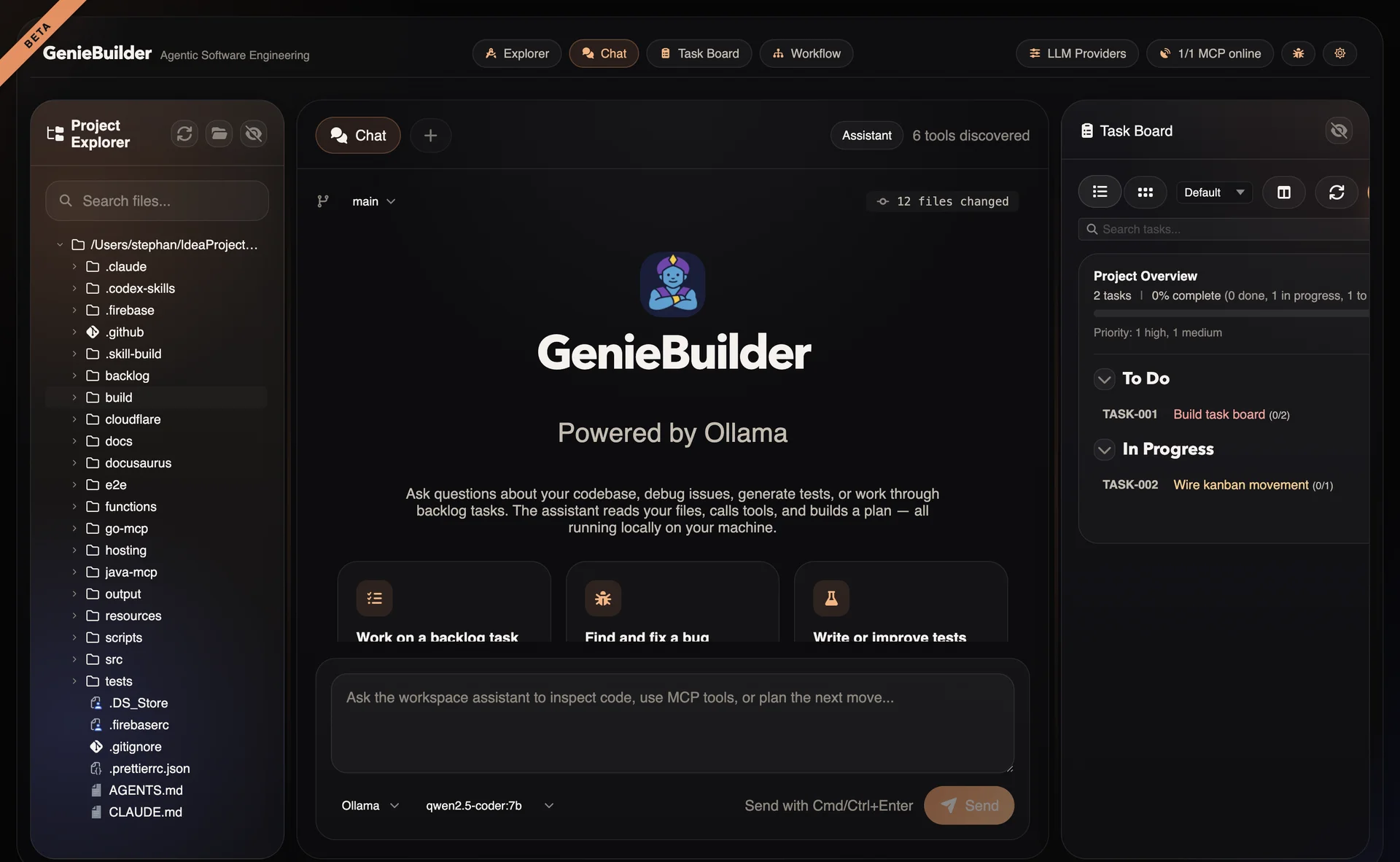
Architecture
Task management is implemented on top of the MCP (Model Context Protocol) layer:
- Main process owns all MCP orchestration and tool calls
- Renderer communicates through typed IPC (
window.api.tasks) - Backlog sidecar provides the actual task storage and operations
- No direct file editing — all changes go through MCP tools
This architecture ensures:
- Data consistency across the application
- Atomic operations with proper error handling
- Extensibility through additional MCP tools
Task List View
The task list provides a filterable, sortable view of all tasks:
Columns displayed:
- ID (e.g., TASK-123)
- Title
- Status
- Priority
- Labels
- Milestone
Filtering options:
- Status (To Do, In Progress, Done)
- Priority (High, Medium, Low)
- Labels (custom tags)
- Milestone
- Search text (title/description)
Sorting:
- Click column headers to sort
- Secondary sort by creation date
Kanban Board
The Kanban view provides a visual workflow for task management:
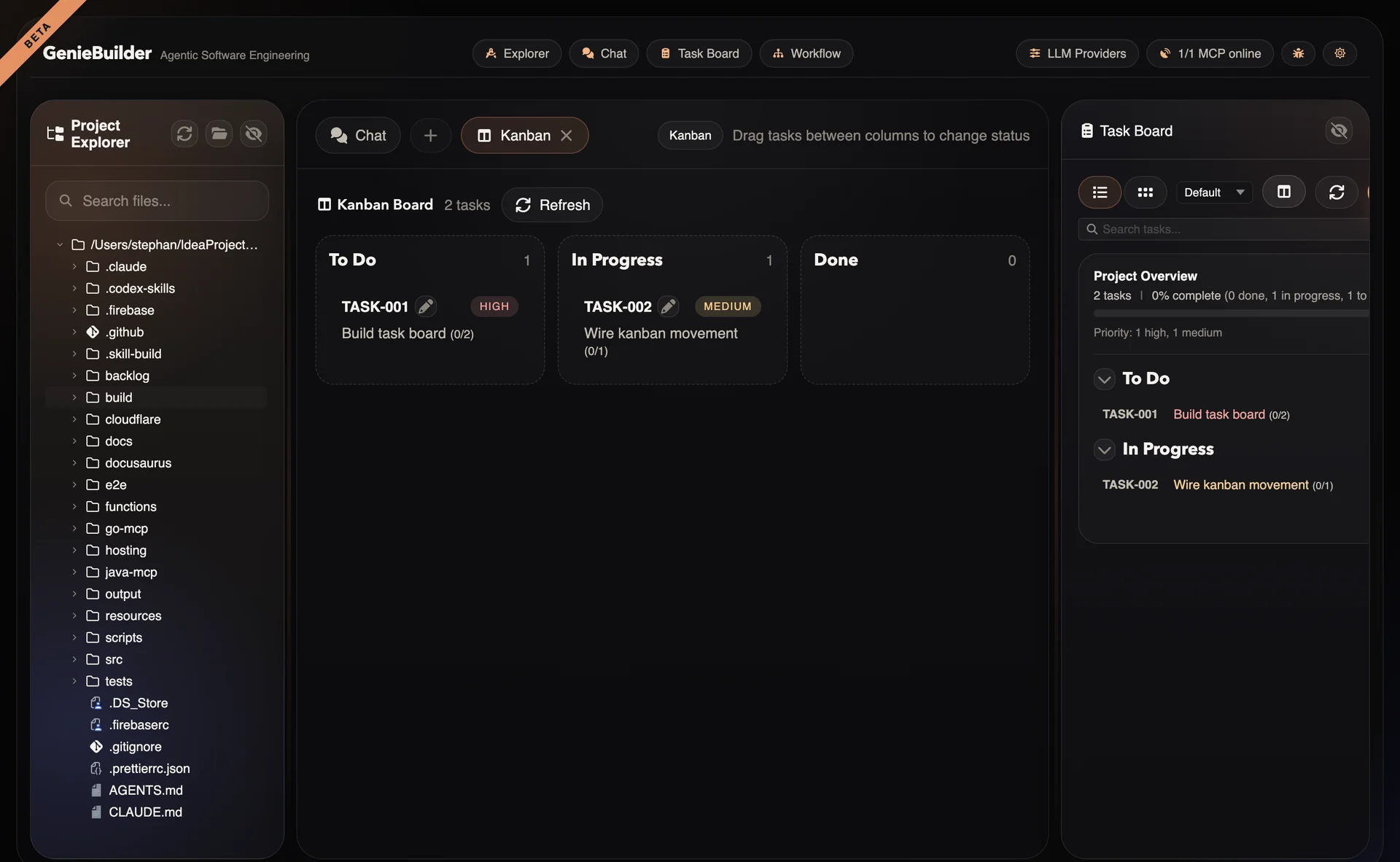
Columns:
- To Do: Tasks not yet started
- In Progress: Active tasks
- Done: Completed tasks
Drag and drop:
- Move tasks between columns to update status
- Status changes are persisted through MCP
Card display:
- Task ID and title
- Priority indicator (color-coded)
- Labels (chips)
- Assignee avatar (if available)
Card View
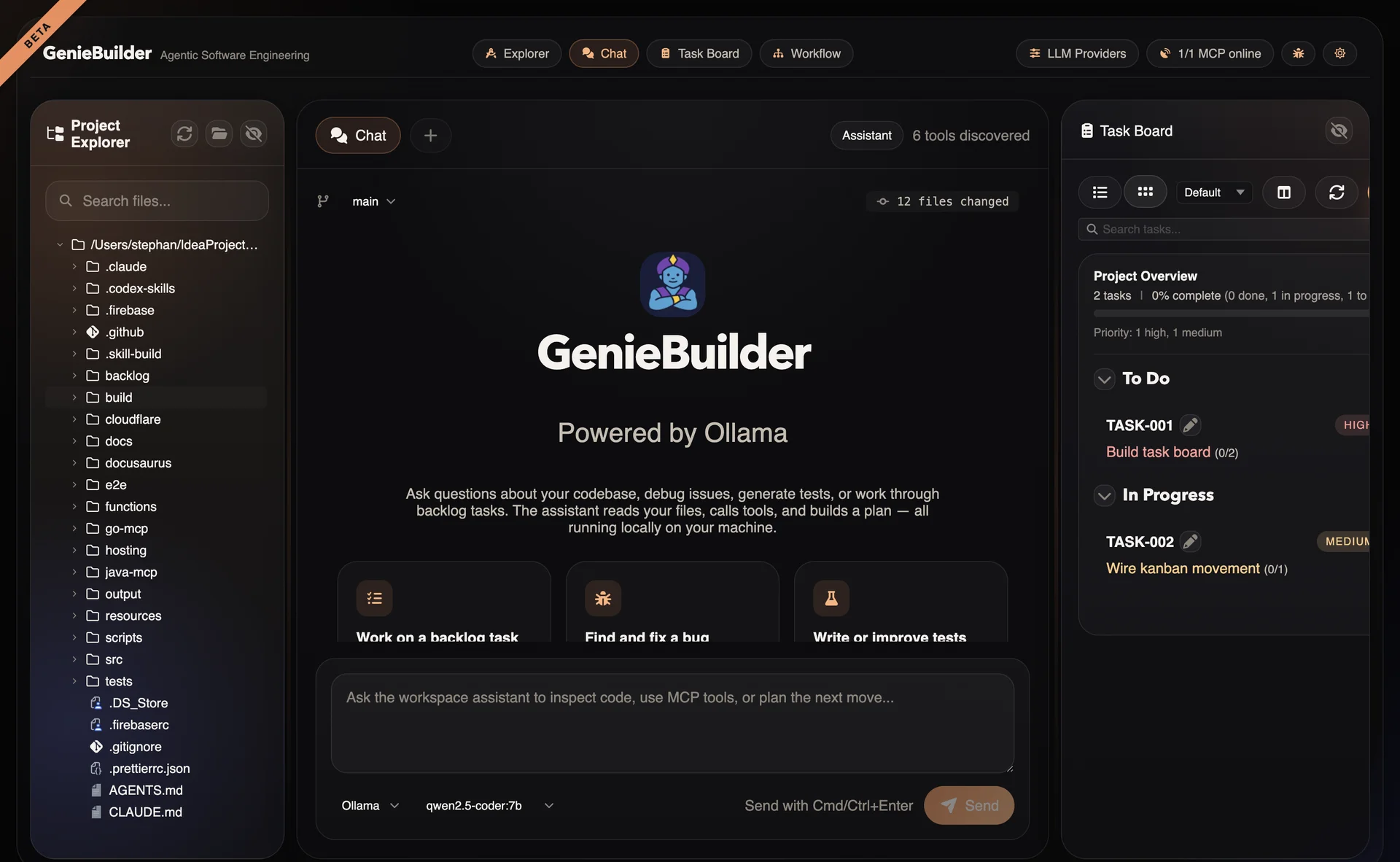
Tasks can also be viewed as cards in the task board:
Task Detail View
Click any task to open the detail panel:
Editable Fields
| Field | Description |
|---|---|
| Title | Short task name |
| Description | Detailed explanation |
| Acceptance Criteria | Checklist of requirements |
| Status | Current workflow state |
| Priority | High, Medium, or Low |
| Labels | Comma-separated tags |
| Milestone | Target milestone |
Read-Only Sections
Additional Backlog sections are displayed read-only:
- Implementation notes
- Definition of Done
- References
- Dependencies
These sections can be edited directly in the Backlog files if needed.
Creating Tasks
New tasks can be created from the task panel:
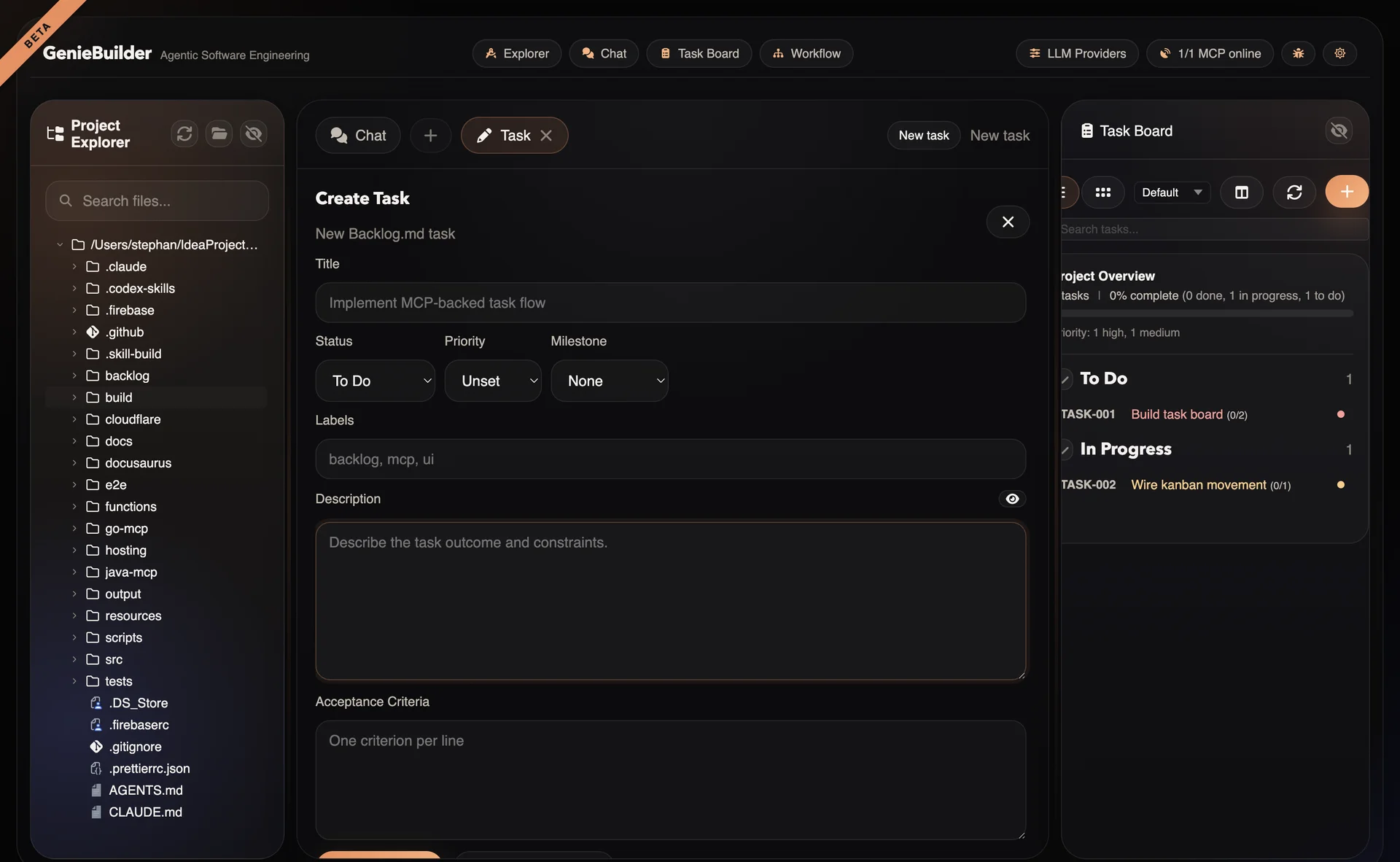
- Click New Task button
- Fill in required fields (title, status)
- Optionally add description, criteria, labels
- Save to create the task
The task ID is auto-generated by Backlog following the TASK-XXX pattern.
Task Context in Workflows
Tasks provide context for workflow execution:
Template Variables
Workflows can access task data through template variables:
{{task.id}}           - Task identifier (e.g., "TASK-123")
{{task.title}}        - Task title
{{task.description}}  - Full description
{{task.slug}}         - URL-friendly title
Branch Naming
Git branches can be auto-generated from tasks:
feature/{{task.slug}}-{{task.id}}
# Results in: feature/my-feature-TASK-123
Commit Messages
Commit templates can include task context:
[{{task.id}}] {{task.title}}
# Results in: [TASK-123] Implement user authentication
Task Status Workflow
The default Backlog status workflow:
Draft → To Do → In Progress → Done
         ↑___________↓
              (can revert)
Status transitions:
- Forward: Progress tasks toward completion
- Backward: Revert if needed (e.g., reopen a done task)
- Archive: Move completed tasks to archive (separate from active board)
Archive Flow
Completed tasks can be archived:
- Select task(s) in the task list
- Click Archive button
- Confirm the action
- Tasks are moved to Backlog archive folder
Archived tasks:
- Are removed from the active board
- Can be viewed in the archive folder
- Can be restored if needed
Integration with Chat
Tasks are available as context in chat:
- Task-aware prompts: Reference tasks naturally in conversation
- Tool access: Chat can use Backlog tools to read/update tasks
- Approval gates: Mutating task operations require confirmation
Example chat interaction:
User: "Update TASK-123 to In Progress"
→ Tool call: backlog.task_edit
→ Approval dialog shown
→ Task updated on confirmation
Backlog Compatibility
GenieBuilder works with standard Backlog files:
---
id: TASK-123
title: Implement user authentication
status: In Progress
priority: high
labels: [auth, backend]
milestone: v1.0
---

# Description

Implement JWT-based authentication for the API.

## Acceptance Criteria

- [ ] User can register with email/password
- [ ] User can log in with credentials
- [ ] Token refresh mechanism
- [ ] Password reset flow
The MCP sidecar parses these files and exposes them through the tool interface.
Task Search
Full-text search across tasks:
- Searches title and description
- Filters in real-time as you type
- Highlights matching terms
- Supports partial word matching
Best Practices
- Use descriptive titles — Clear, actionable task names
- Write acceptance criteria — Define "done" explicitly
- Label consistently — Create a taxonomy for your project
- Link to milestones — Group related work
- Keep descriptions concise — Link to external docs for details
- Update status promptly — Keep the board reflective of reality
Troubleshooting
Task List Not Loading
If the task list stays empty:
- Check that the Backlog MCP sidecar is running
- Verify the workspace has a
backlog/directory - Check the MCP connection status in Settings
- Review the main process logs for errors
Task Updates Failing
If task edits don't persist:
- Verify MCP tool calls are enabled
- Check file permissions in the backlog directory
- Ensure no other process is locking the files
- Try refreshing the task list
Status Changes Not Reflecting
If Kanban drag-and-drop doesn't update status:
- Check the Backlog sidecar is responsive
- Verify the task file is writable
- Try using the detail panel to change status
- Check for JavaScript errors in DevTools